
Claims CRM features, in the order a claim uses them
One claim, from the first call to the last report, in six stops. Each stop names the part of the product that does the work and links to the page with the detail. Four of them show the real screen, filled with demo data.
A lead arrives
A form on your website creates a contact and a lead project in your account.
Website leads and other connections
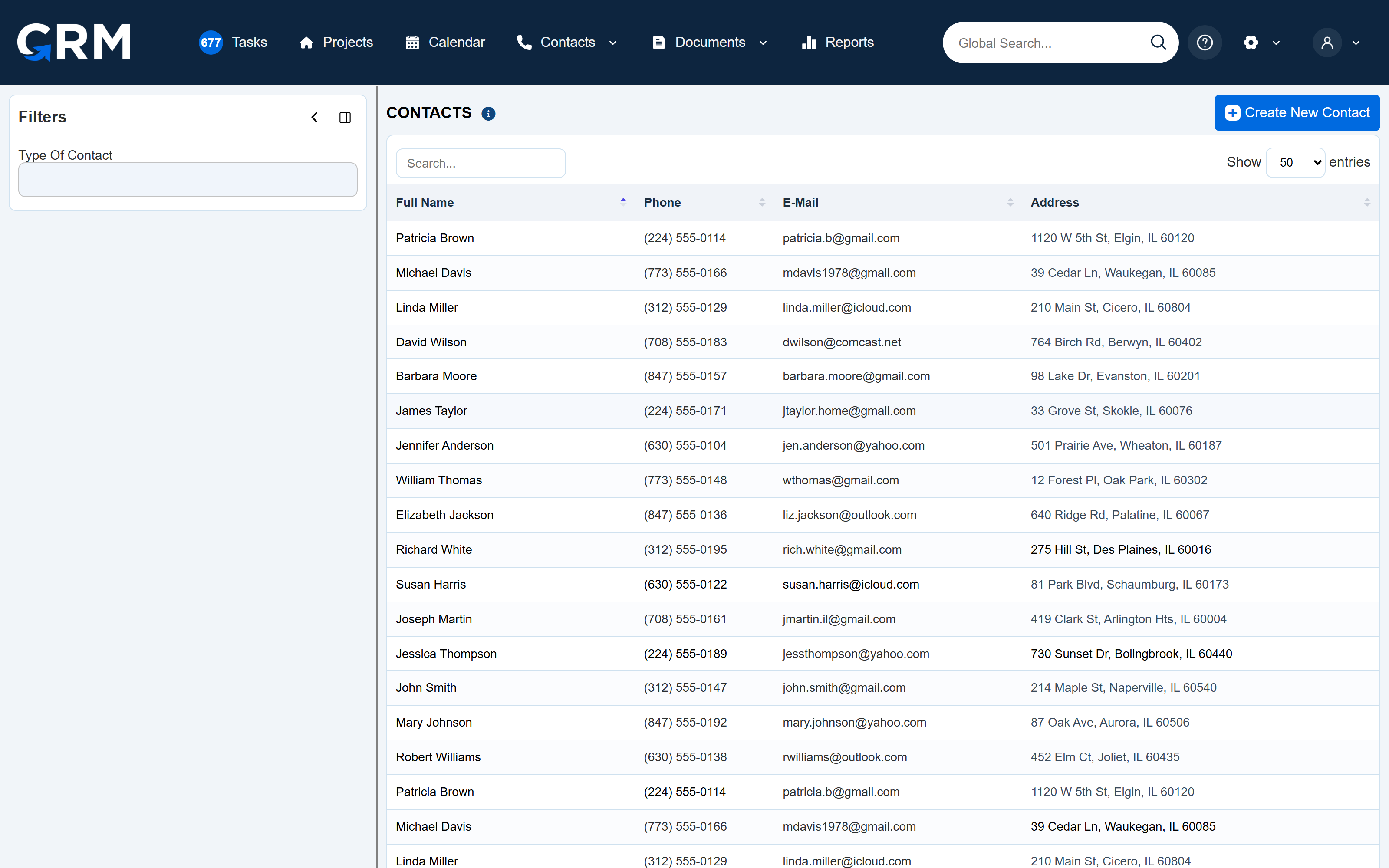
The claim moves through your stages
Each stage has its own list of actions that run when a claim enters it and another list for when it leaves. One of those actions creates a task from a template and assigns it by role or by user.
- The claim entersThe first list of actions runs
- It sits in the stage
- The claim leavesThe second list of actions runs
Claims pipelineAutomations and tasks
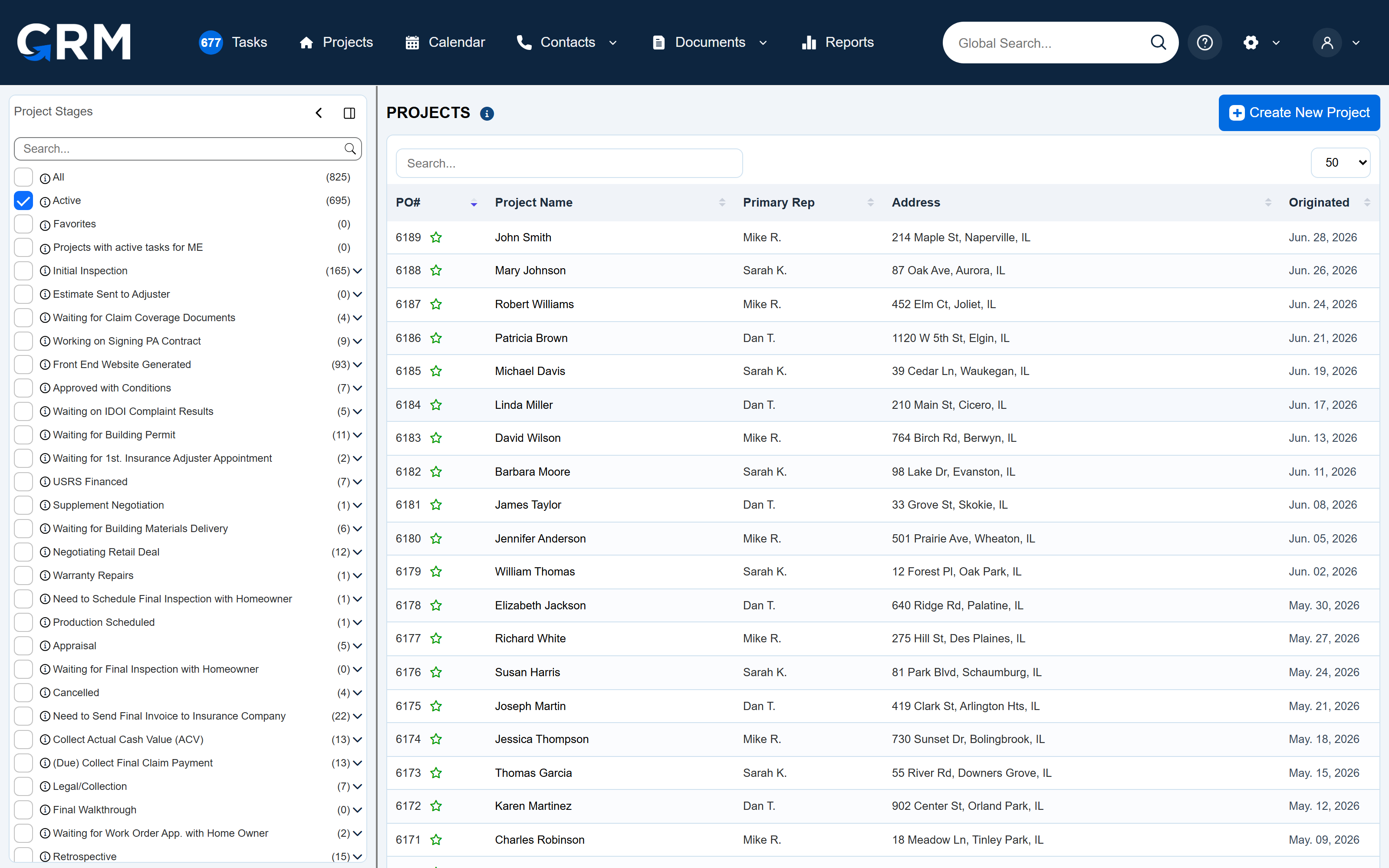
Documents are filed and signed
Filed
Every claim starts with the same 34 folders.
Selected files can be combined into one PDF and downloaded or printed.
Signed
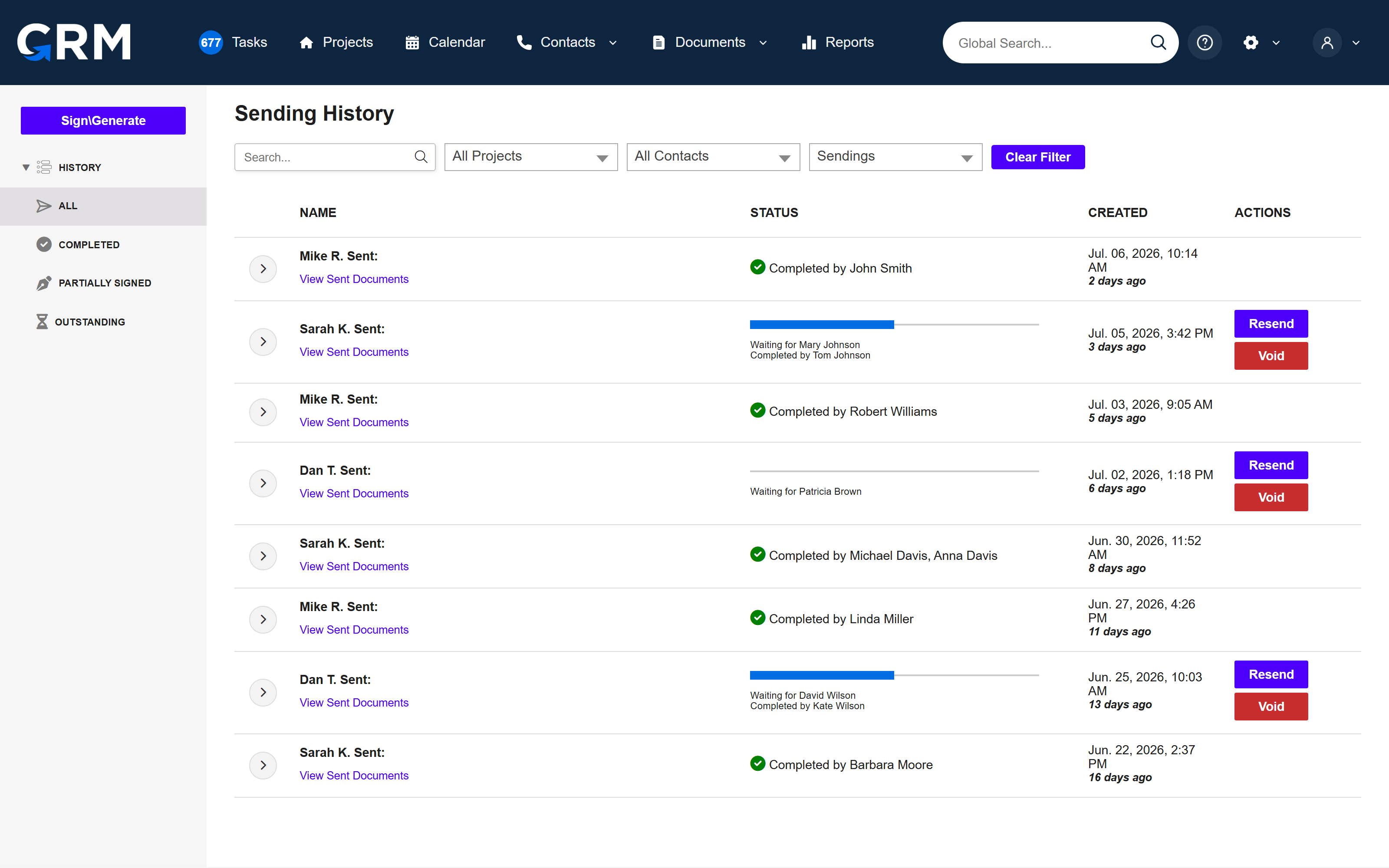
Inspections go on the calendar
Appointments are booked onto your Google calendars from inside the claim.
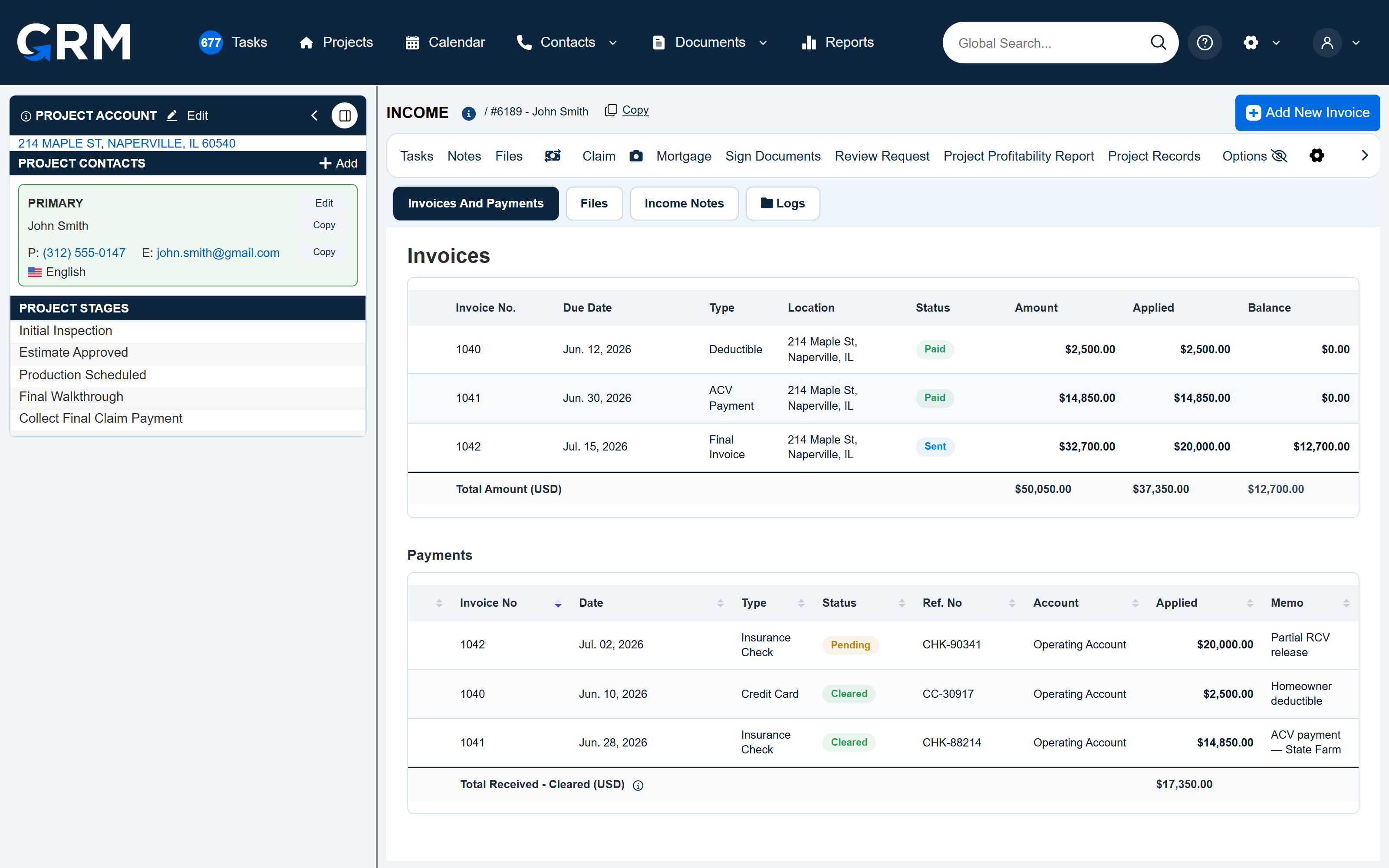
Money comes in and goes out
An invoice is given a type from the insurance side of the job, such as Actual Cash Value (ACV) or Recoverable Depreciation (RC).
- ACV
- Actual Cash Value
- RC
- Recoverable Depreciation
Estimates and invoicingCommission tracking
The owner reads the numbers
The Reports page includes a Master Report, a Projects Profitability Report, Payables and Payments History.
Which plan each part is on
Essentials is $59 a month and Professional is $99. Both include the company account and the first admin user.
Essentials
$59 a month
Four parts of the product
- Pipeline stages and task management
- Customer and project records
- Document storage on each claim
- Team permissions
Professional
$99 a month
The same four, and four more
- Stage automation
- E-signatures and the Documents Hub
- Customer portal
- Invoicing and online payments
Each added user is a paid seat at $39 a month on either plan. Enterprise is priced by conversation. The pricing page has the full lists, and roles and permissions explains what a seat can be allowed to see.
What CRM For Claims does not do
Better to read it here than to find out on the third week.
- It does not write estimates. You keep your estimating software and enter the figures on the claim.
- There is no import of claims or contacts from a spreadsheet or from another CRM. Open claims are typed in.
- The list of claims cannot be exported to a spreadsheet.
- It is not an accounting or payroll system, and it has no link to QuickBooks or Zapier.
- Google Calendar is the only calendar it connects to.
- It has no drying logs, equipment tracking or contents inventory for mitigation work.
If one of these decides the purchase for you, the comparison with general roofing software says when a broader platform is the better fit, and spreadsheet vs claims CRM lists what you give up by leaving the spreadsheet.
Smaller parts people ask about by name
- Mortgage
- The Mortgage screen holds each loan on the property with its borrowers, notes and files. The lender side is described under loss draft tracking.
- Project Records
- The Project Records screen lists what happened on a claim and filters it by category, among them Stages, Tasks, Files, Notes and Finance.
- Profitability
- A profitability report can be created for the whole project or per trade.
- Storms
- A storm is recorded once with its type of loss and the maximum size of hail.
- CompanyCam
- A new claim also creates a project in your CompanyCam account.
- Customer portal
- Customers have a portal to follow their claim.
- Day one
- What a new account contains on its first day is counted on the implementation page.
The same parts, read for your kind of company or your job
By company
Five questions asked before a demo
Are all features on both plans?
No. Essentials has pipeline stages and tasks, customer and project records, document storage and team permissions. Stage automation, e-signatures with the Documents Hub, the customer portal, and invoicing with online payments are on Professional.
Does CRM For Claims replace my estimating software?
No. It does not write estimates. The figures from your estimate are entered on the claim and the invoices are built from there.
Can I bring my open claims in from a spreadsheet?
Not by import. Open claims are entered by a person. The spreadsheet itself can be uploaded to a claim as a file.
Which outside tools does it connect to?
Three: a lead form on your website, CompanyCam and Google Calendar. There is no QuickBooks or Zapier connection.
How many users are included?
One, the first admin. Each user after that is $39 a month.
Pick the two steps that cost your office the most time
Book a demo and name them. We will open those screens first and go through the others in the time that is left.