Short answer: A Documents Hub sends contracts and estimates out for e-signature, keeps a full signing history, and auto-files the signed copy to the right claim — so paperwork lives on the job instead of scattered across an inbox, a downloads folder, and a separate e-sign tool's dashboard.
I build CRM For Claims, and if I had to pick the one thing that quietly eats the most time on a restoration or roofing claim, it wouldn't be the roof measurement or the scope disagreement. It would be paperwork: getting a homeowner to actually sign the contract, finding that signed contract three weeks later when the adjuster asks for it, and proving it was ever sent in the first place. A documents hub for insurance paperwork isn't a nice-to-have feature — it's the difference between a claim file you can hand to anyone on your team and one only you can navigate.
What does "sending, e-signing, and storing" a claim document actually solve?
It solves three separate failures that usually happen on three separate tools: contracts get sent from email and stall in someone's inbox, signatures happen in a standalone e-sign app disconnected from the claim record, and the final signed file gets saved wherever the last person who touched it happened to save it — a laptop, a shared drive, a phone's photo roll.
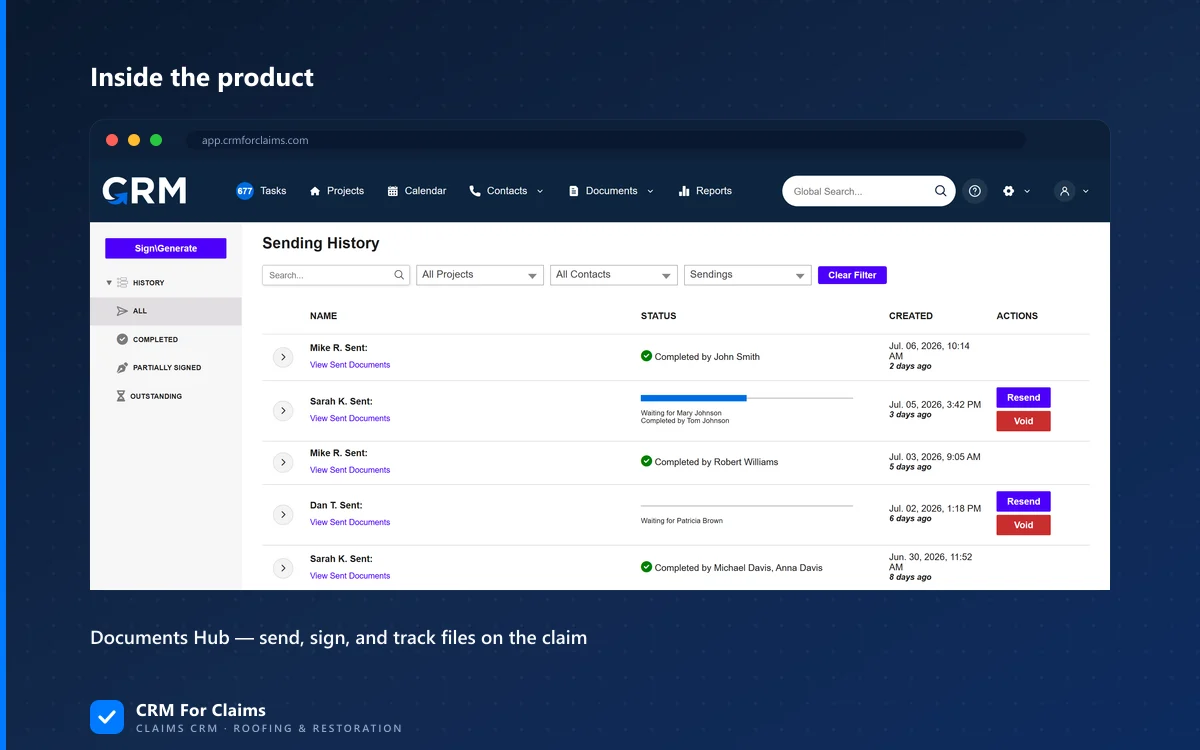
On CRM For Claims this lives in one place: the Documents Hub generates the file from a template, sends it for signature, and files the signed version back onto the claim automatically. No forwarding a PDF between two tools and hoping someone remembers to attach the result to the right project.
Why does email become the default document system, even for teams that don't want it to?
Email wins by default because it's the path of least resistance — everyone already has it open, and attaching a PDF feels faster than logging into another system. The cost shows up later, when nobody can find the signed version without searching three inboxes.
The pattern is almost always the same. Someone drafts a representation letter or a mitigation authorization, attaches it to an email, and asks the homeowner to sign and send it back. The homeowner prints it, signs by hand, takes a photo, and emails that photo back — sideways, a little blurry, sometimes missing a page. That file lands in one person's inbox. It doesn't get renamed consistently. It doesn't get tied to the claim in any system. Six weeks later, when the adjuster wants proof the scope was approved, someone is searching a Sent folder by guessing which week it happened in.
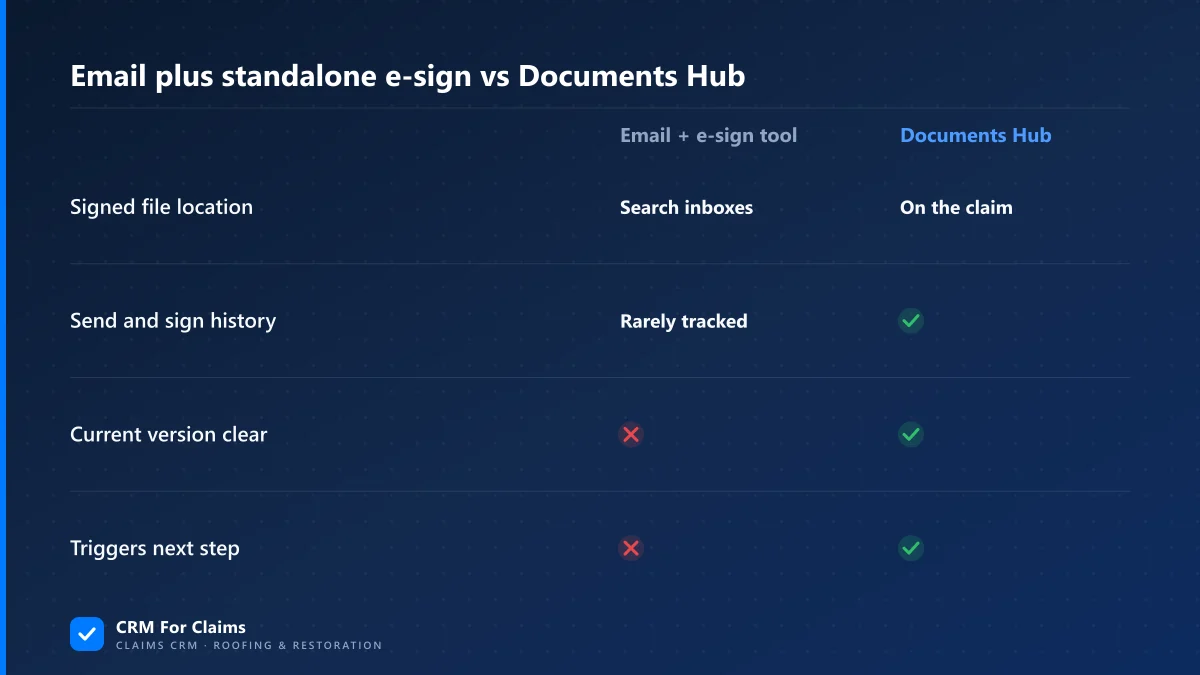
| What you need to know | Email + standalone e-sign | Documents Hub on the claim |
|---|---|---|
| Where's the signed file? | Search inboxes and guess the date | Attached to the claim record |
| Who sent it and when? | Rarely tracked anywhere durable | Full send + sign history logged |
| Is it the current version? | Whichever copy someone last forwarded | One version of record per claim |
| Does signing trigger the next step? | Only if someone remembers | Can fire a stage automation |
What should a real e-signature flow look like on a claim?
A working e-signature flow generates the document from a template pre-filled with the claim's details, sends it directly to the right contact, and records exactly when it was sent, opened, and signed — without anyone leaving the claim to make that happen.
The templates matter more than they sound like they should. A generic e-sign tool gives you a blank canvas and expects you to build a contract template, a representation letter template, and an authorization-to-proceed template from scratch, then remember which one to pull for which situation. CRM For Claims ships templates built for restoration and roofing work specifically, so the fields that always need to be there — property address, insurance carrier, claim number, scope of work — are already mapped in. You're filling in specifics, not reconstructing the document.
Our documents and e-signature features cover the sending and signing side. What makes it worth building into the CRM instead of buying a standalone tool is what happens on both ends of that signature — which is the next two questions.
Where do signed documents actually need to live — and who has to find them later?
A signed document needs to live on the claim itself, filed under a name and category someone else on your team can find without asking you where you put it. If it only lives in the tool that sent it for signature, anyone without a login to that separate tool is locked out of proof the work was authorized.
Think about who actually needs that file besides the person who sent it. An adjuster wants it during a dispute. A crew lead wants to confirm scope before starting work. A new hire, six months in, needs to see how a similar claim was documented. None of those people should need a separate login to a document tool nobody remembers signing up for. On CRM For Claims, every signed file auto-files to the claim's folder the moment it's signed — same place as the estimate, the photos, and the invoice.
- Representation letters — proof of who's authorized to work the claim on the homeowner's behalf.
- Contracts and estimates — the scope both sides agreed to, dated and signed.
- Mitigation or work authorizations — permission to begin before the full estimate is approved.
- Certificates of completion — the homeowner's sign-off that work is done, often required before final payment releases.
Is a Documents Hub the same thing as a standalone e-signature tool?
No. A standalone e-signature tool is very good at one job — getting a signature on a PDF — but it has no idea what a claim is, so the signed file has to be manually pulled back out and attached somewhere else. A Documents Hub built into a claims CRM already knows which claim the document belongs to before it's even sent.
That's not a knock on general e-sign tools; they do their one job well, and if all you need is an occasional signature on a form, one might genuinely be enough — see our honest take on what those workarounds quietly cost once you're stacking three or four of them around a generic CRM. The difference shows up in volume. At five claims a month, manually re-attaching signed PDFs is annoying. At thirty or forty active claims, it's a part-time job nobody was hired to do, and it's the first thing that falls apart when the person who "just knows where things are filed" takes a week off.
Does signing a document trigger anything else on the claim?
It can. Because the signature event happens inside the same system as the claim's stages, a signed contract or approved estimate can automatically move the claim to its next stage or fire a task, instead of sitting signed-but-unnoticed until someone checks manually.
We wrote a full breakdown of what stage automation should and shouldn't do — the short version is that a signed document is exactly the kind of clear, unambiguous event worth automating on. "Contract signed" isn't a judgment call; it's a fact the system can see the instant it happens, so it can safely create the next task — schedule the crew, notify the adjuster, generate the invoice — without a person having to notice and remember to do it.
| Document signed | What can fire automatically |
|---|---|
| Work authorization | Move claim to "in progress," notify crew lead |
| Estimate / scope approval | Generate invoice draft, notify adjuster |
| Certificate of completion | Move claim to "closing," trigger final payment request |
None of this requires overhauling how your office already works — it requires the document living in the same system as the claim it belongs to, instead of one step removed from it. If you're running a handful of claims a month with mostly-happy homeowners, a standalone e-sign tool and a shared drive might genuinely hold up fine for a while longer. If you've ever had to tell an adjuster "let me find that, give me a minute" and it turned into ten, that's usually the sign the paperwork has outgrown the folder it's living in. See how the Documents Hub fits alongside the rest of the workflow on our features page, check it against what you're paying for separate tools on pricing, or book a live walkthrough and we'll pull up a real claim's document history on the call.